
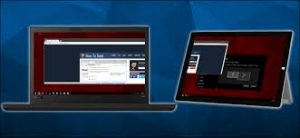
 Looking to hook up another screen to your computer? You don’t have to spend money on a dedicated external monitor if you have a spare laptop. Just use Miracast or AirPlay to set it up as your second monitor.
Using a second or external monitor is the best way to increase viewing space and productivity. This can be handy in situations such as when working from home and needing additional screen real estate for documents and applications. If you use a Windows or macOS device and there’s a laptop around, you can use Miracast or AirPlay to use it as a second or external display. The best thing about the whole setup is that it’s quick, easy, and involves zero adapters, ports, or cables.
Windows: Use a Laptop as a Second or External Monitor With Miracast
Almost all modern Microsoft Windows desktop computers and laptops come with built-in Miracast functionality. It’s a wireless display standard that can send video signals from one device to another, and you can use it to extend or duplicate a laptop display over Wi-Fi easily. However, there are a couple of requirements to use Miracast:
- Both Windows devices need to be on the same wireless network.
- Both Windows devices must run the latest versions of the Windows 10 or 11 operating system, including up-to-date graphics card drivers.
If that’s not an issue, work through the instructions below to use a desktop PC or laptop in a dual-monitor setup with another laptop via Miracast.
Set Up Laptop to Work as a Second or External Monitor
You must begin by setting up the Windows laptop you want to work as a second display. To do that:
- Right-click the Start menu and select Settings.
- Go to System > Projecting to this PC.
- Open the drop-down menu next to Some Windows and Android devices can project to this PC when you say it’s OK and select Available everywhere on secure networks.
Work through the rest of the options on the screen and tweak them the way you want:
- Ask to project to this PC: Choose how your laptop prompts for permission when a connection attempt is requested—First time only or Every time a connection is requested.
- Require PIN for pairing: Choose how your laptop prompts you to enter its PIN when you attempt to use it as a second screen—Never, First time, or Always.
- This PC can be discovered for projection only when it’s plugged into a power source: Determine if you want to save battery life by only being able to project to your laptop’s screen when it’s charging.
- Rename your PC: You need to know your laptop’s name to connect to it, so note it down. Select this option to change your laptop’s name if you have difficulty recognizing it from other Windows devices.
- Launch Wireless Display (Windows 10) or Connect (Windows 11) via the Start menu and keep the app open.
Cast Display to Your Laptop Screen
You can now project the display from your main PC to the laptop device. To do that:
- Open the Settings app and select System > Display.
- Select Connect.
- Select your laptop’s name and choose to duplicate or extend the screen.
Work through the rest of the settings on the Display settings screen to change the screen resolution, display orientation, and scale of your multiple monitor setup. You can also switch between projection modes—Duplicate, Extend, etc.—on-the-fly by pressing Windows Key + P.
Install Miracast Wireless Display on Your Devices
Despite supporting Miracast, one or both of your computers may require that you install the Microsoft Wireless Display Adapter on your computer. If you see a Add the “Wireless Display” optional feature to project to this PC notification under Settings > Display > Projecting to this PC, you must:
- Select Optional features.
- Scroll down and check the box next to Wireless Display.
- Select Install.
If you want to use your laptop as a separate device but with the same keyboard and mouse, you must rely on a hardware or software KVM (Keyboard, Video and Mouse) solution. To learn more, check our guide to using multiple computer devices with a single keyboard and mouse.
Mac: Use a Laptop as a Second or External Monitor With AirPlay
If you use a Mac, you can use Apple’s proprietary AirPlay protocol to use another MacBook or a Sidecar-compatible iPad as a secondary monitor. For that to work, both devices must:
- Have Wi-Fi and Bluetooth active.
- Be signed in with the same Apple ID.
- Have the latest system software updates installed.
If that’s not an issue:
- Open the Control Center on the Mac you want to project the screen from and select Screen Mirroring.
- Pick the MacBook or iPad you want to use as a second screen and pick between mirroring and extending the display. If you want to manage how both displays work (e.g., switch around the alignment), open the System Preferences/Settings app and select Displays.
Alternatively, if you want to control both devices with a single keyboard or mouse, learn how to use Universal Control on Mac and iPad.
Get More Screen Real Estate the Easy Way
As you just learned, Miracast and AirPlay offer a quick and easy solution for anyone with an extra laptop wanting more screen real estate alongside their regular PC. Being able to set up everything wirelessly only makes it all the more practical and convenient.
For more information on solutions for running your businesses’ technology more efficiently, visit our website or contact Megan Meisner at mmeisner@launchpadonline.com or 813 448-7100 x210.
This was originally posted by OnlineTechTips.



