
• LinkedIn
  • Twitter
  • Google+
.
|
Launch Pad News
|
10 Quick Steps for Conquering Email Chaos | Part 1
Posted on August 31, 2011 by

It seems that the faster technology moves, the more mail pours in on us from all sides. We get messages from colleagues and peers, from family and friends, from causes and social media sites.  Some of us spend more than 4 hours a day just trying to tame the email beast (more than Timothy Ferris says we should work in an entire week!)  What we need to know is the right way to view, sort, filter and ignore.  Master those skills and the sky will open. Email chaos can be conquered!

Yes, I know for many of us that is a completely radical concept.  Email feels like bill paying with 3 kids in college; the carnival gopher game or an all you can eat buffet that never diminishes.  So, how can you make a dent in the maelstrom?  It is just a matter of knowing which Outlook tools to use and how to set them up to fit your needs.  Here are some practical ways to use Outlook 2010 features to bring your Inbox back under control.

1: Use Conversation View
Conversation view is a new feature in Outlook 2010 that threads together all e-mail messages in a particular conversation among two or more people. The conversation includes sent and received messages so that you can easily see the whole conversation at a glance. Turn on Conversation View by clicking the View tab and clicking Conversations. Choose Show Messages In Conversations to get started. You can also set other options, such as Always Expand Conversations, in the Conversations list to set up the conversation display the way you want it.

2: Ignore Threads That Annoy You
Have you ever been cc’d on a conversation that made your eyes roll up in your head? Or perhaps two team members are debating the use of the serial comma and you really have other things you need to focus on today. You can ignore a conversation and remove yourself from receiving further posts in that particular thread. Click the last message in the thread you want to ignore. Then, in the Home tab, click Ignore in the Delete group. A message box appears telling you what to expect (Figure A). Click Ignore Conversation to complete the job.
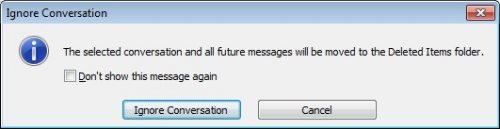
 
Figure A:  You can opt out of future messages in conversations that leave you cold.

3: Automate Message Management with Quick Steps
Quick Steps is a new feature in Outlook 2010 that enables you to automate mail management tasks with a single click of the mouse. You can use the Quick Steps that come with the program — Add To Calendar, To Manager, Done, Team E-mail, and Reply & Delete — to instantly send messages where they need to go. You can also create your own Quick Steps by clicking the More button in the Quick Steps gallery and choosing Create New.

4: Build Your Junk Mail File
This may seem like a no-brainer, but it is important to right-click any junk message you receive, point to Junk, and click Block Sender. Over time, this creates quite a file of spammers and other unwanted senders you can immediately cut right out of your Inbox real estate. Nice.

5: Understand How & When to AutoArchive
Those of us who like to have quick access to important messages may not be too comfortable letting Outlook wrap old messages up in a bundle and tuck them away in an archive file on our computers or the company server. But if you’re game, AutoArchive can help you keep your Inbox uncluttered. By default, AutoArchive is turned off. You can enable the feature and tailor your settings by clicking the Folder tab and clicking AutoArchive Settings in the Properties group. In the AutoArchive tab, select the Archive This Folder Using These Settings option and enter the age of items you want to archive, where you want the older items stored, and whether you want the removed items to be deleted from your Inbox. After you make your choices, click OK to save the changes.
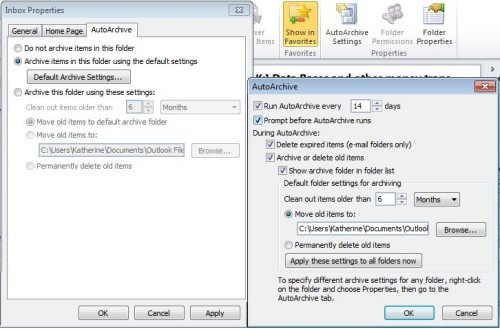
 

Figure B:  Out with the old and in with the new with AutoArchive.

6: Who Makes the Rules Around Here?
Sometimes rules aren’t such a bad idea, especially if you manage huge volumes of email and you need to organize what you receive by client, project, or contact. You can easily create rules that file your messages for you so that you can read them in detail when you get a chance or put your fingers on the one you need quickly when you go searching for it. Start by clicking the message from the sender you want to create a rule to manage. Then, click Rules in the Move group of the Home tab and choose Create Rule. Enter the desired conditions (Who is the message from? What’s in the subject line?) and choose what you want Outlook to do with it. Click OK to create the rule, and Outlook will start carrying out your wishes with the very next email message you receive.

To learn more about The Launch Pad visit our website or contact Megan Meisner at mmeisner@launchpadonline.com or 813 920 0788 x210.

Stay Tuned:  Coming soon – Part 2 | 10 Quick Steps for Conquering Email Chaos

Posted in Launch Pad News, TechRecs: Cool Tools & Hot Topics, Small Business IT Management
TechRec: Small Businesses Flocking To Videoconferencing
Our Team is Growing – Welcome Michael Dimino!

Related Posts

  • What Is Patch Tuesday? Microsoft’s Monthly Update Explained

    On the second Tuesday of each month, Microsoft and other tech companies release patches for
    read more
  • 10 Ways to Save Time on Your Windows 11 PC

    Windows 11 packs many features that you can use to speed up your tasks and
    read more
  • How to Automatically Fix Column Width to Fit Your Data in Excel

    There are numerous ways to change column widths in Excel, but did you know you
    read more
  • Why I Use a Privacy Screen When Working in Public

    Privacy screens are an affordable way to protect yourself from nosy colleagues and strangers whilst
    read more
Logging In...

Profile cancel

Sign in with Twitter Sign in with Facebook
or

Not published

TO WEBSITE >>
launchpadonline.com

CATEGORIES

  • Launch Pad News
  • TechRecs: Cool Tools & Hot Topics
  • Small Business IT Management
  • Small Business Web Strategies
  • IT Solutions – Cloud | Mobile
  • IT Solutions – Stay Secure
  • ITs Easy Being Green
  • RevITup TechCare Client Forum
  • GreenBack Nonprofit Wish List
  • Launch Pad Franchise Forum
  • Launch Pad Partner News

Cloud Computing in Plain English

Copyright © 2026 | Privacy Policy
  • LinkedIn
  • Twitter
  • Google+

Archives

  • January 2025 (1)
  • December 2024 (3)
  • November 2024 (4)
  • October 2024 (2)
  • September 2024 (4)
  • August 2024 (3)
  • July 2024 (2)
  • June 2024 (1)
  • May 2024 (3)
  • April 2024 (4)
  • March 2024 (2)
  • February 2024 (3)
  • January 2024 (4)
  • December 2023 (3)
  • November 2023 (3)
  • October 2023 (3)
  • September 2023 (3)
  • August 2023 (5)
  • July 2023 (3)
  • June 2023 (5)
  • May 2023 (4)
  • April 2023 (3)
  • March 2023 (4)
  • February 2023 (3)
  • January 2023 (3)
  • December 2022 (2)
  • November 2022 (2)
  • October 2022 (2)
  • September 2022 (3)
  • August 2022 (3)
  • July 2022 (2)
  • June 2022 (3)
  • May 2022 (2)
  • April 2022 (2)
  • March 2022 (2)
  • February 2022 (3)
  • January 2022 (2)
  • December 2021 (2)
  • November 2021 (3)
  • October 2021 (3)
  • September 2021 (3)
  • August 2021 (3)
  • July 2021 (2)
  • June 2021 (4)
  • May 2021 (3)
  • April 2021 (2)
  • March 2021 (2)
  • February 2021 (3)
  • January 2021 (2)
  • December 2020 (2)
  • November 2020 (2)
  • October 2020 (4)
  • September 2020 (2)
  • August 2020 (3)
  • July 2020 (2)
  • June 2020 (3)
  • May 2020 (2)
  • April 2020 (3)
  • March 2020 (3)
  • February 2020 (3)
  • January 2020 (4)
  • December 2019 (3)
  • November 2019 (2)
  • October 2019 (4)
  • September 2019 (3)
  • August 2019 (4)
  • July 2019 (2)
  • June 2019 (3)
  • May 2019 (3)
  • April 2019 (3)
  • March 2019 (3)
  • February 2019 (3)
  • January 2019 (4)
  • December 2018 (3)
  • November 2018 (4)
  • October 2018 (3)
  • September 2018 (2)
  • August 2018 (3)
  • July 2018 (3)
  • June 2018 (3)
  • May 2018 (2)
  • April 2018 (3)
  • March 2018 (3)
  • February 2018 (3)
  • January 2018 (3)
  • December 2017 (3)
  • November 2017 (4)
  • October 2017 (3)
  • September 2017 (4)
  • August 2017 (4)
  • July 2017 (4)
  • June 2017 (3)
  • May 2017 (5)
  • April 2017 (4)
  • March 2017 (4)
  • February 2017 (5)
  • January 2017 (4)
  • December 2016 (3)
  • November 2016 (4)
  • October 2016 (4)
  • September 2016 (4)
  • August 2016 (5)
  • July 2016 (4)
  • June 2016 (5)
  • May 2016 (3)
  • April 2016 (4)
  • March 2016 (4)
  • February 2016 (3)
  • January 2016 (3)
  • December 2015 (4)
  • November 2015 (4)
  • October 2015 (3)
  • September 2015 (3)
  • August 2015 (3)
  • July 2015 (3)
  • June 2015 (5)
  • May 2015 (4)
  • April 2015 (6)
  • March 2015 (4)
  • February 2015 (2)
  • January 2015 (5)
  • December 2014 (4)
  • November 2014 (3)
  • October 2014 (8)
  • September 2014 (5)
  • August 2014 (2)
  • July 2014 (3)
  • June 2014 (6)
  • May 2014 (3)
  • April 2014 (6)
  • March 2014 (5)
  • February 2014 (3)
  • January 2014 (5)
  • December 2013 (4)
  • November 2013 (4)
  • October 2013 (6)
  • September 2013 (3)
  • August 2013 (5)
  • July 2013 (6)
  • June 2013 (4)
  • May 2013 (3)
  • April 2013 (4)
  • March 2013 (4)
  • February 2013 (3)
  • January 2013 (5)
  • December 2012 (4)
  • November 2012 (5)
  • October 2012 (5)
  • September 2012 (6)
  • August 2012 (6)
  • July 2012 (6)
  • June 2012 (3)
  • May 2012 (7)
  • April 2012 (6)
  • March 2012 (10)
  • February 2012 (6)
  • January 2012 (5)
  • December 2011 (7)
  • November 2011 (9)
  • October 2011 (4)
  • September 2011 (4)
  • August 2011 (11)
  • July 2011 (14)
  • June 2011 (4)
  • May 2011 (11)
  • April 2011 (8)
  • March 2011 (11)
  • February 2011 (11)
  • January 2011 (21)
  • December 2010 (10)
  • November 2010 (10)
  • October 2010 (8)
  • September 2010 (10)
  • August 2010 (12)
  • July 2010 (8)
  • June 2010 (9)
  • May 2010 (8)
  • April 2010 (7)
  • March 2010 (10)
  • February 2010 (8)
  • January 2010 (6)
  • December 2009 (7)
  • November 2009 (13)
  • October 2009 (11)
  • September 2009 (16)
  • August 2009 (13)
  • July 2009 (16)
  • June 2009 (18)
  • May 2009 (16)


