

• LinkedIn
  • Twitter
  • Google+
.
|
TechRecs: Cool Tools & Hot Topics
|
TechRec: 6 Ways To Customize the Windows 8 Start Screen – Reposted from howtogeek.com
Posted on December 9, 2013 by

howtogeekWith the roll out of Windows 8.1 recently, Microsoft improved many of the Windows 8 annoyances but many new users still find themselves a little stymied by how to navigate and customize the start screen.  We thought howtogeek.com had some great tips on how to modify the Start screen to enhance usability and improve functionality.

While you can’t get rid of the Start screen in Windows 8, there are lots of ways to customize the look and feel of the Start screen and make it your own.

In addition to removing tiles you don’t want to see, you can turn the Start screen into a full-screen desktop application, folder, and website launcher. You can tone the colors down or use an even more colorful design.

Change the Background & Color
win8-image21

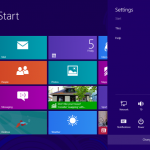
If the Start screen’s default flat blue-purple color and sparse background doesn’t do it for you, you can change the Start screen’s background and colors.

To change this setting, move your mouse to the top or bottom left corners of your screen or press the WinKey+C shortcut to reveal the charms bar. Click the Settings charm and click Change PC settings.

(If you’re using a touch screen, you can access the charms bar by swiping in from the right.)

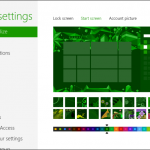
Click the Personalize category, click Start screen, and select your background image and color scheme. You can’t set custom background images or color schemes, but Microsoft provides quite a few options. You can choose everything from a complicated background in bright pink to a flat color background in dark gray.

Resize Tiles
win8-image-31

You’ll notice that some tiles on the Start screen, such as Mail and People, are larger than other tiles on the Start screen, such as Internet Explorer and the Store. You can control the size of each tile yourself. Right-click a tile and use the Smaller or Larger bottom that appears at the bottom of the screen to enlarge or shrink the tile.

(Long-press the tile if you’re using a touch screen.)

Disable or Enable Live Tiles
win8-image41

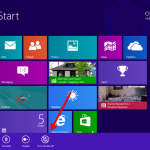
Some tiles provide live, updated information. For example, the Finance and News tiles provide updates financial information and news from the Internet. If you don’t want this noise cluttering your Start screen, you can right-click a tile and click Turn live tile off. The tile will show only the app’s name – you can click it to open the app and view the information at your leisure.

Of course, if you don’t want a tile on your Start screen at all, you can click the Unpin from Start button instead.

Organize Tiles Into Groups
win8-image-5

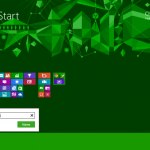
The Start screen allows you to arrange tiles into groups, each of which can be named. To arrange tiles into a group, drag and drop them – you’ll see areas of space in between groups while dragging and dropping.

To name your groups, use the Semantic Zoom feature – hold Ctrl and scroll the mouse wheel down or click the little button at the bottom right corner of your screen, to the right of the horizontal scroll bar.

(If you’re using a touch screen, perform a stretch gesture – place two fingers on the screen and move them apart.)

Right-click one of the groups and click the Name group button to enter a name.

Each name will appear on the Start screen, allowing you to categorize your tiles, apps, and shortcuts.

Create a Desktop Application Launcher
win8-image7

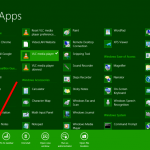
If you don’t like the interface formerly known as Metro and you’d rather just use desktop apps, you can turn the Start screen into a desktop-only app launcher. Unpin all the tiles you don’t want to see by right-clicking each and using the Unpin button, and then pin all your favorite apps.

You can find all your desktop apps under All Apps – right-click on the Start screen and select All apps to view them. Right-click an app and select Pin to Start to put it on your Start screen.

Pin Folders & Websites
win8-image-8

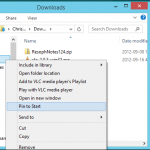
You can also pin shortcuts to folders and websites to your Start screen. To pin a folder to your Start screen, right-click it in the File Explorer window and select Pin to Start.

To pin a website to your Start screen, navigate to the website and use the Add site to Start Screen option in your browser’s menu. This feature is included in Internet Explorer, but other browsers can also support it. For example, you’ll find the same Pin to Start Screen option in Google Chrome’s menu.

Folders and websites will appear on your Start screen as tiles, just like other shortcuts.

With a few tweaks, the Start screen can be something approximating a full-screen Start menu — one that doesn’t encourage you to use any of the Windows 8 (don’t call it Metro!) apps if you don’t want to use them.

For more information on solutions for running your businesses’ technology more efficiently, visit our website or contact Megan Meisner at mmeisner@launchpadonline.com or 813 920 0788 x210.


Posted in TechRecs: Cool Tools & Hot Topics, Small Business IT Management
Remote Teams Enamored by Flavor of the Month Collaboration Tools? Manage Them All With Just One App
The Launch Pad Has New Phone Numbers

Related Posts

  • What Is Patch Tuesday? Microsoft’s Monthly Update Explained

    On the second Tuesday of each month, Microsoft and other tech companies release patches for
    read more
  • 10 Ways to Save Time on Your Windows 11 PC

    Windows 11 packs many features that you can use to speed up your tasks and
    read more
  • How to Automatically Fix Column Width to Fit Your Data in Excel

    There are numerous ways to change column widths in Excel, but did you know you
    read more
  • Why I Use a Privacy Screen When Working in Public

    Privacy screens are an affordable way to protect yourself from nosy colleagues and strangers whilst
    read more
Logging In...

Profile cancel

Sign in with Twitter Sign in with Facebook
or

Not published

TO WEBSITE >>
launchpadonline.com

CATEGORIES

  • Launch Pad News
  • TechRecs: Cool Tools & Hot Topics
  • Small Business IT Management
  • Small Business Web Strategies
  • IT Solutions – Cloud | Mobile
  • IT Solutions – Stay Secure
  • ITs Easy Being Green
  • RevITup TechCare Client Forum
  • GreenBack Nonprofit Wish List
  • Launch Pad Franchise Forum
  • Launch Pad Partner News

Cloud Computing in Plain English

Copyright © 2026 | Privacy Policy
  • LinkedIn
  • Twitter
  • Google+

Archives

  • January 2025 (1)
  • December 2024 (3)
  • November 2024 (4)
  • October 2024 (2)
  • September 2024 (4)
  • August 2024 (3)
  • July 2024 (2)
  • June 2024 (1)
  • May 2024 (3)
  • April 2024 (4)
  • March 2024 (2)
  • February 2024 (3)
  • January 2024 (4)
  • December 2023 (3)
  • November 2023 (3)
  • October 2023 (3)
  • September 2023 (3)
  • August 2023 (5)
  • July 2023 (3)
  • June 2023 (5)
  • May 2023 (4)
  • April 2023 (3)
  • March 2023 (4)
  • February 2023 (3)
  • January 2023 (3)
  • December 2022 (2)
  • November 2022 (2)
  • October 2022 (2)
  • September 2022 (3)
  • August 2022 (3)
  • July 2022 (2)
  • June 2022 (3)
  • May 2022 (2)
  • April 2022 (2)
  • March 2022 (2)
  • February 2022 (3)
  • January 2022 (2)
  • December 2021 (2)
  • November 2021 (3)
  • October 2021 (3)
  • September 2021 (3)
  • August 2021 (3)
  • July 2021 (2)
  • June 2021 (4)
  • May 2021 (3)
  • April 2021 (2)
  • March 2021 (2)
  • February 2021 (3)
  • January 2021 (2)
  • December 2020 (2)
  • November 2020 (2)
  • October 2020 (4)
  • September 2020 (2)
  • August 2020 (3)
  • July 2020 (2)
  • June 2020 (3)
  • May 2020 (2)
  • April 2020 (3)
  • March 2020 (3)
  • February 2020 (3)
  • January 2020 (4)
  • December 2019 (3)
  • November 2019 (2)
  • October 2019 (4)
  • September 2019 (3)
  • August 2019 (4)
  • July 2019 (2)
  • June 2019 (3)
  • May 2019 (3)
  • April 2019 (3)
  • March 2019 (3)
  • February 2019 (3)
  • January 2019 (4)
  • December 2018 (3)
  • November 2018 (4)
  • October 2018 (3)
  • September 2018 (2)
  • August 2018 (3)
  • July 2018 (3)
  • June 2018 (3)
  • May 2018 (2)
  • April 2018 (3)
  • March 2018 (3)
  • February 2018 (3)
  • January 2018 (3)
  • December 2017 (3)
  • November 2017 (4)
  • October 2017 (3)
  • September 2017 (4)
  • August 2017 (4)
  • July 2017 (4)
  • June 2017 (3)
  • May 2017 (5)
  • April 2017 (4)
  • March 2017 (4)
  • February 2017 (5)
  • January 2017 (4)
  • December 2016 (3)
  • November 2016 (4)
  • October 2016 (4)
  • September 2016 (4)
  • August 2016 (5)
  • July 2016 (4)
  • June 2016 (5)
  • May 2016 (3)
  • April 2016 (4)
  • March 2016 (4)
  • February 2016 (3)
  • January 2016 (3)
  • December 2015 (4)
  • November 2015 (4)
  • October 2015 (3)
  • September 2015 (3)
  • August 2015 (3)
  • July 2015 (3)
  • June 2015 (5)
  • May 2015 (4)
  • April 2015 (6)
  • March 2015 (4)
  • February 2015 (2)
  • January 2015 (5)
  • December 2014 (4)
  • November 2014 (3)
  • October 2014 (8)
  • September 2014 (5)
  • August 2014 (2)
  • July 2014 (3)
  • June 2014 (6)
  • May 2014 (3)
  • April 2014 (6)
  • March 2014 (5)
  • February 2014 (3)
  • January 2014 (5)
  • December 2013 (4)
  • November 2013 (4)
  • October 2013 (6)
  • September 2013 (3)
  • August 2013 (5)
  • July 2013 (6)
  • June 2013 (4)
  • May 2013 (3)
  • April 2013 (4)
  • March 2013 (4)
  • February 2013 (3)
  • January 2013 (5)
  • December 2012 (4)
  • November 2012 (5)
  • October 2012 (5)
  • September 2012 (6)
  • August 2012 (6)
  • July 2012 (6)
  • June 2012 (3)
  • May 2012 (7)
  • April 2012 (6)
  • March 2012 (10)
  • February 2012 (6)
  • January 2012 (5)
  • December 2011 (7)
  • November 2011 (9)
  • October 2011 (4)
  • September 2011 (4)
  • August 2011 (11)
  • July 2011 (14)
  • June 2011 (4)
  • May 2011 (11)
  • April 2011 (8)
  • March 2011 (11)
  • February 2011 (11)
  • January 2011 (21)
  • December 2010 (10)
  • November 2010 (10)
  • October 2010 (8)
  • September 2010 (10)
  • August 2010 (12)
  • July 2010 (8)
  • June 2010 (9)
  • May 2010 (8)
  • April 2010 (7)
  • March 2010 (10)
  • February 2010 (8)
  • January 2010 (6)
  • December 2009 (7)
  • November 2009 (13)
  • October 2009 (11)
  • September 2009 (16)
  • August 2009 (13)
  • July 2009 (16)
  • June 2009 (18)
  • May 2009 (16)

