
• LinkedIn
  • Twitter
  • Google+
.
|
TechRecs: Cool Tools & Hot Topics
|
How to Use Your Android Device as a Mobile Hotspot
Posted on February 28, 2017 by

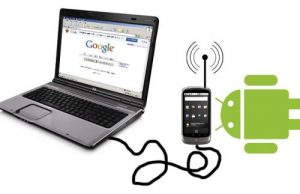
android hotspotTurning your Android smartphone into a Wi-Fi hotspot means you always have a secure, private connection on the go. Here’s how to do it.

It’s not always easy to find reliable Wi-Fi on the go, especially if you’re looking for a secure, private connection. Public Wi-Fi networks can leave you vulnerable to hackers and create privacy issues if you’re viewing sensitive data. But if you have an Android smartphone in your pocket, you’re just a few steps away from having a private, personal Wi-Fi hotspot.

All smartphones running Android 2.2 or later have built-in hotspot capabilities, but some carriers might limit access to the feature depending on your wireless plan. Also, your smartphone might run a slightly different version of Android depending on your device –few devices carry stock Android, instead applying a proprietary interface, like Samsung TouchWiz. So some of these steps might look slightly different on your device.

First check with your mobile carrier

The first step is to check with your mobile carrier — some companies impose data limits, or will ask you to purchase an additional plan. Verizon includes mobile hotspot access for no additional charge on most plans, but some plans require an additional fee or charge you if you exceed your data limits.

AT&T also includes hotspot access in most of its plans, with charges if you go over your monthly data limits. T-Mobile charges $14.99 per month for mobile hotspot access, allowing you to connect up to five devices at a time. Sprint includes mobile hotspot access into some — but not all — of its plans; if you go over the allotted data amount, you won’t be charged extra, but it switches from 4G LTE to 2G connectivity.

Once you have confirmed that you can use your iPhone as a mobile hotspot with your wireless plan, follow the steps below.

Step 1

On your home screen, tap settings > wireless & networks.

Step 2

Look for “Portable Wi-Fi Hotspot” and tap the check mark, or toggle the slide bar, next to the option. (On some devices, you may need to tap “more” to expand the list of options under the wireless & networks category.)

Step 3

Tap on “Wi-Fi hotspot settings” or “Configure Wi-Fi hotspot.” Depending on your device, your hotspot settings might be named something slightly different. Here, you can see the default password for your mobile hotspot.

Note: Within these settings, you can also change the password, rename the network SSID, adjust security settings and manage other devices connected to your hotspot.

Step 4

Open the Wi-Fi settings on the device you want to connect, and find your Android hotspot on the list of available networks. The name of your hotspot will be the same as the Network SSID under your hotspot settings.

Step 5

Decide if you want to connect your device to your Android hotspot using Wi-Fi, Bluetooth or USB.

Connecting via Wi-Fi

Go to the Wi-Fi settings on the device you want to tether to your Android device.
Look for your network, which will be the same as the Network SSID name under your hotspot settings.
Tap the network name and connect using the password you created in step 3.
Connecting via Bluetooth

Turn on the Bluetooth setting on the device you want to connect.
Go to the settings on your Android device and select “Bluetooth.”
Find the device you want to connect, and select it to pair.
You might see a code appear on your tablet or notebook — you will need to enter that into your Android device to connect.
Connecting via USB

Using the USB cable that came with your Android device, plug it into your Mac or PC.
Choose your network from the list of Wi-Fi networks on your computer.
Disconnecting devices

To see what devices are connected to your hotspot, you can head back into your hotspot settings to see a list of connected devices and disconnect devices one by one. Or, you can simply turn off your hotspot, and all devices will disconnect immediately.

Tracking data

If you’re worried about going over your monthly data limit, you can check your monthly data usage on your Android smartphone under settings > data usage. Alternatively, you can always log into your Verizon, Sprint, T-Mobile or AT&T account to see how much data you have left.

Alternative for Samsung users

If you have multiple Samsung devices, you can share your hotspot capabilities instantly using Samsung Flow. Similar to Apple’s “Instant Hotpsot” feature, sharing your hotspot through Samsung Flow only works between Samsung devices.

Thing to consider:

  • Always make sure you review your plan’s data limits, so you know how much you will be charged if you go over.
  • Once you activate your Wi-Fi Hotspot, you will see a message in your notification bar.
  • Make sure to set a strong password to keep your hotspot secure, especially if you are using it in a public place.
  • Using your phone as a hotspot will drain your battery faster, especially if you connect wirelessly, so you’ll want to make sure you can charge your phone if necessary.

For more information on solutions for running your businesses’ technology more efficiently, visit our website or contact Megan Meisner at mmeisner@launchpadonline.com or 813 448-7100 x210.

This was originally posted by Sarah White for CIO.com.

Posted in TechRecs: Cool Tools & Hot Topics, Small Business IT Management, Small Business Web Strategies, IT Solutions - Cloud | Mobile, IT Solutions - Stay Secure
TechRec – Mobile Apps Series: SimpleMind, Scapple & MindNode
How to Print From Your Mobile Device While on the Go

Related Posts

  • What Is Patch Tuesday? Microsoft’s Monthly Update Explained

    On the second Tuesday of each month, Microsoft and other tech companies release patches for
    read more
  • 10 Ways to Save Time on Your Windows 11 PC

    Windows 11 packs many features that you can use to speed up your tasks and
    read more
  • How to Automatically Fix Column Width to Fit Your Data in Excel

    There are numerous ways to change column widths in Excel, but did you know you
    read more
  • Why I Use a Privacy Screen When Working in Public

    Privacy screens are an affordable way to protect yourself from nosy colleagues and strangers whilst
    read more
Logging In...

Profile cancel

Sign in with Twitter Sign in with Facebook
or

Not published

TO WEBSITE >>
launchpadonline.com

CATEGORIES

  • Launch Pad News
  • TechRecs: Cool Tools & Hot Topics
  • Small Business IT Management
  • Small Business Web Strategies
  • IT Solutions – Cloud | Mobile
  • IT Solutions – Stay Secure
  • ITs Easy Being Green
  • RevITup TechCare Client Forum
  • GreenBack Nonprofit Wish List
  • Launch Pad Franchise Forum
  • Launch Pad Partner News

Cloud Computing in Plain English

Copyright © 2026 | Privacy Policy
  • LinkedIn
  • Twitter
  • Google+

Archives

  • January 2025 (1)
  • December 2024 (3)
  • November 2024 (4)
  • October 2024 (2)
  • September 2024 (4)
  • August 2024 (3)
  • July 2024 (2)
  • June 2024 (1)
  • May 2024 (3)
  • April 2024 (4)
  • March 2024 (2)
  • February 2024 (3)
  • January 2024 (4)
  • December 2023 (3)
  • November 2023 (3)
  • October 2023 (3)
  • September 2023 (3)
  • August 2023 (5)
  • July 2023 (3)
  • June 2023 (5)
  • May 2023 (4)
  • April 2023 (3)
  • March 2023 (4)
  • February 2023 (3)
  • January 2023 (3)
  • December 2022 (2)
  • November 2022 (2)
  • October 2022 (2)
  • September 2022 (3)
  • August 2022 (3)
  • July 2022 (2)
  • June 2022 (3)
  • May 2022 (2)
  • April 2022 (2)
  • March 2022 (2)
  • February 2022 (3)
  • January 2022 (2)
  • December 2021 (2)
  • November 2021 (3)
  • October 2021 (3)
  • September 2021 (3)
  • August 2021 (3)
  • July 2021 (2)
  • June 2021 (4)
  • May 2021 (3)
  • April 2021 (2)
  • March 2021 (2)
  • February 2021 (3)
  • January 2021 (2)
  • December 2020 (2)
  • November 2020 (2)
  • October 2020 (4)
  • September 2020 (2)
  • August 2020 (3)
  • July 2020 (2)
  • June 2020 (3)
  • May 2020 (2)
  • April 2020 (3)
  • March 2020 (3)
  • February 2020 (3)
  • January 2020 (4)
  • December 2019 (3)
  • November 2019 (2)
  • October 2019 (4)
  • September 2019 (3)
  • August 2019 (4)
  • July 2019 (2)
  • June 2019 (3)
  • May 2019 (3)
  • April 2019 (3)
  • March 2019 (3)
  • February 2019 (3)
  • January 2019 (4)
  • December 2018 (3)
  • November 2018 (4)
  • October 2018 (3)
  • September 2018 (2)
  • August 2018 (3)
  • July 2018 (3)
  • June 2018 (3)
  • May 2018 (2)
  • April 2018 (3)
  • March 2018 (3)
  • February 2018 (3)
  • January 2018 (3)
  • December 2017 (3)
  • November 2017 (4)
  • October 2017 (3)
  • September 2017 (4)
  • August 2017 (4)
  • July 2017 (4)
  • June 2017 (3)
  • May 2017 (5)
  • April 2017 (4)
  • March 2017 (4)
  • February 2017 (5)
  • January 2017 (4)
  • December 2016 (3)
  • November 2016 (4)
  • October 2016 (4)
  • September 2016 (4)
  • August 2016 (5)
  • July 2016 (4)
  • June 2016 (5)
  • May 2016 (3)
  • April 2016 (4)
  • March 2016 (4)
  • February 2016 (3)
  • January 2016 (3)
  • December 2015 (4)
  • November 2015 (4)
  • October 2015 (3)
  • September 2015 (3)
  • August 2015 (3)
  • July 2015 (3)
  • June 2015 (5)
  • May 2015 (4)
  • April 2015 (6)
  • March 2015 (4)
  • February 2015 (2)
  • January 2015 (5)
  • December 2014 (4)
  • November 2014 (3)
  • October 2014 (8)
  • September 2014 (5)
  • August 2014 (2)
  • July 2014 (3)
  • June 2014 (6)
  • May 2014 (3)
  • April 2014 (6)
  • March 2014 (5)
  • February 2014 (3)
  • January 2014 (5)
  • December 2013 (4)
  • November 2013 (4)
  • October 2013 (6)
  • September 2013 (3)
  • August 2013 (5)
  • July 2013 (6)
  • June 2013 (4)
  • May 2013 (3)
  • April 2013 (4)
  • March 2013 (4)
  • February 2013 (3)
  • January 2013 (5)
  • December 2012 (4)
  • November 2012 (5)
  • October 2012 (5)
  • September 2012 (6)
  • August 2012 (6)
  • July 2012 (6)
  • June 2012 (3)
  • May 2012 (7)
  • April 2012 (6)
  • March 2012 (10)
  • February 2012 (6)
  • January 2012 (5)
  • December 2011 (7)
  • November 2011 (9)
  • October 2011 (4)
  • September 2011 (4)
  • August 2011 (11)
  • July 2011 (14)
  • June 2011 (4)
  • May 2011 (11)
  • April 2011 (8)
  • March 2011 (11)
  • February 2011 (11)
  • January 2011 (21)
  • December 2010 (10)
  • November 2010 (10)
  • October 2010 (8)
  • September 2010 (10)
  • August 2010 (12)
  • July 2010 (8)
  • June 2010 (9)
  • May 2010 (8)
  • April 2010 (7)
  • March 2010 (10)
  • February 2010 (8)
  • January 2010 (6)
  • December 2009 (7)
  • November 2009 (13)
  • October 2009 (11)
  • September 2009 (16)
  • August 2009 (13)
  • July 2009 (16)
  • June 2009 (18)
  • May 2009 (16)


