

• LinkedIn
  • Twitter
  • Google+
.
|
TechRecs: Cool Tools & Hot Topics
|
How to Split Data Into Multiple Columns in Excel
Posted on February 12, 2021 by

If you start an Excel workbook by grouping data into the same cell and later decide to ungroup it, Excel has several easy functions that can split one spreadsheet column into two. Here’s how to use both “Text to Columns” and “Flash Fill.”

How to Use “Text to Columns” in Excel
Select the cells you want to split by clicking the first cell and dragging down to the last cell in the column. In our example, we’ll split the first and last names listed in column A into two different columns, column B (last name) and column C (first name.)

  • Click the “Data” tab at the top of the Excel Ribbon.
  • Click the “Text to Columns” button in the Data Tools section.
  • In the Convert Text to Columns Wizard, select “Delimited” and then click “Next.” Delimited works great in our example, as the names are separated by commas. If the names were separated only by a space, you could select “Fixed width” instead.
  • Check both the “Comma” and “Space” delimiters and then the “Next” button. Delimiters are simply how the data is separated. In this case, we’re using comma and space because each cell in column A has a comma and a space separating the two. You can use any delimiter that fits your data set.

Next, we’re going to click the cell where we want to start adding the data—in this case B2—and click “Finish.” This will add the first and last names to their respective columns.

We could do this differently—for example, adding first names to column B and last names to column C. To do so, we’d highlight the first names in the wizard (notice the black highlight in the screenshot that signifies the active column) and then click the appropriate cell.
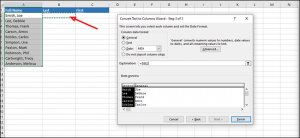
You may notice a chime and then an inability to select the cell you want to move the data into. If this happens, just click inside the “Destination” area within the wizard or add the information manually into the Destination field.

How to Use “Flash Fill” in Excel
If you only have a few names, and you don’t want to mess with the Text to Columns Wizard, you can use Flash Fill instead. This, in essence, is a smarter way to copy and paste the data into new cells.

Click inside the first cell of the appropriate column—the one named “First, in our example—and type in the first name of the first person in your dataset.
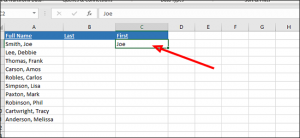
Hit “Enter” on the keyboard to move to the next cell down. From the “Home” tab on the ribbon, click “Editing” and then “Flash Fill.” Alternatively, you can press Ctrl+E on your keyboard. Flash Fill will try to figure out what you’re trying to accomplish—adding only the first names in this example—and paste the results into the appropriate cells.

Second, click inside the first cell of the Last column and type in the last name of the appropriate person, and hit “Enter” on the keyboard. From the “Home” tab, click “Editing” and then “Flash Fill.” Or, use the Ctrl + E keyboard shortcut. Once again, Flash Fill will attempt to figure out the data you want to fill into the column. If Flash Fill doesn’t work properly, there’s always Undo (Ctrl+Z).

For more information on solutions for running your businesses’ technology more efficiently, visit our website or contact Megan Meisner at mmeisner@launchpadonline.com or 813 448-7100 x210.

This was originally posted by howtogeek. 

Posted in TechRecs: Cool Tools & Hot Topics, Small Business IT Management
How to Insert a Signature in Google Docs
How to Make a Booklet in Word

Related Posts

  • What Is Patch Tuesday? Microsoft’s Monthly Update Explained

    On the second Tuesday of each month, Microsoft and other tech companies release patches for
    read more
  • 10 Ways to Save Time on Your Windows 11 PC

    Windows 11 packs many features that you can use to speed up your tasks and
    read more
  • How to Automatically Fix Column Width to Fit Your Data in Excel

    There are numerous ways to change column widths in Excel, but did you know you
    read more
  • Why I Use a Privacy Screen When Working in Public

    Privacy screens are an affordable way to protect yourself from nosy colleagues and strangers whilst
    read more
Logging In...

Profile cancel

Sign in with Twitter Sign in with Facebook
or

Not published

TO WEBSITE >>
launchpadonline.com

CATEGORIES

  • Launch Pad News
  • TechRecs: Cool Tools & Hot Topics
  • Small Business IT Management
  • Small Business Web Strategies
  • IT Solutions – Cloud | Mobile
  • IT Solutions – Stay Secure
  • ITs Easy Being Green
  • RevITup TechCare Client Forum
  • GreenBack Nonprofit Wish List
  • Launch Pad Franchise Forum
  • Launch Pad Partner News

Cloud Computing in Plain English

Copyright © 2026 | Privacy Policy
  • LinkedIn
  • Twitter
  • Google+

Archives

  • January 2025 (1)
  • December 2024 (3)
  • November 2024 (4)
  • October 2024 (2)
  • September 2024 (4)
  • August 2024 (3)
  • July 2024 (2)
  • June 2024 (1)
  • May 2024 (3)
  • April 2024 (4)
  • March 2024 (2)
  • February 2024 (3)
  • January 2024 (4)
  • December 2023 (3)
  • November 2023 (3)
  • October 2023 (3)
  • September 2023 (3)
  • August 2023 (5)
  • July 2023 (3)
  • June 2023 (5)
  • May 2023 (4)
  • April 2023 (3)
  • March 2023 (4)
  • February 2023 (3)
  • January 2023 (3)
  • December 2022 (2)
  • November 2022 (2)
  • October 2022 (2)
  • September 2022 (3)
  • August 2022 (3)
  • July 2022 (2)
  • June 2022 (3)
  • May 2022 (2)
  • April 2022 (2)
  • March 2022 (2)
  • February 2022 (3)
  • January 2022 (2)
  • December 2021 (2)
  • November 2021 (3)
  • October 2021 (3)
  • September 2021 (3)
  • August 2021 (3)
  • July 2021 (2)
  • June 2021 (4)
  • May 2021 (3)
  • April 2021 (2)
  • March 2021 (2)
  • February 2021 (3)
  • January 2021 (2)
  • December 2020 (2)
  • November 2020 (2)
  • October 2020 (4)
  • September 2020 (2)
  • August 2020 (3)
  • July 2020 (2)
  • June 2020 (3)
  • May 2020 (2)
  • April 2020 (3)
  • March 2020 (3)
  • February 2020 (3)
  • January 2020 (4)
  • December 2019 (3)
  • November 2019 (2)
  • October 2019 (4)
  • September 2019 (3)
  • August 2019 (4)
  • July 2019 (2)
  • June 2019 (3)
  • May 2019 (3)
  • April 2019 (3)
  • March 2019 (3)
  • February 2019 (3)
  • January 2019 (4)
  • December 2018 (3)
  • November 2018 (4)
  • October 2018 (3)
  • September 2018 (2)
  • August 2018 (3)
  • July 2018 (3)
  • June 2018 (3)
  • May 2018 (2)
  • April 2018 (3)
  • March 2018 (3)
  • February 2018 (3)
  • January 2018 (3)
  • December 2017 (3)
  • November 2017 (4)
  • October 2017 (3)
  • September 2017 (4)
  • August 2017 (4)
  • July 2017 (4)
  • June 2017 (3)
  • May 2017 (5)
  • April 2017 (4)
  • March 2017 (4)
  • February 2017 (5)
  • January 2017 (4)
  • December 2016 (3)
  • November 2016 (4)
  • October 2016 (4)
  • September 2016 (4)
  • August 2016 (5)
  • July 2016 (4)
  • June 2016 (5)
  • May 2016 (3)
  • April 2016 (4)
  • March 2016 (4)
  • February 2016 (3)
  • January 2016 (3)
  • December 2015 (4)
  • November 2015 (4)
  • October 2015 (3)
  • September 2015 (3)
  • August 2015 (3)
  • July 2015 (3)
  • June 2015 (5)
  • May 2015 (4)
  • April 2015 (6)
  • March 2015 (4)
  • February 2015 (2)
  • January 2015 (5)
  • December 2014 (4)
  • November 2014 (3)
  • October 2014 (8)
  • September 2014 (5)
  • August 2014 (2)
  • July 2014 (3)
  • June 2014 (6)
  • May 2014 (3)
  • April 2014 (6)
  • March 2014 (5)
  • February 2014 (3)
  • January 2014 (5)
  • December 2013 (4)
  • November 2013 (4)
  • October 2013 (6)
  • September 2013 (3)
  • August 2013 (5)
  • July 2013 (6)
  • June 2013 (4)
  • May 2013 (3)
  • April 2013 (4)
  • March 2013 (4)
  • February 2013 (3)
  • January 2013 (5)
  • December 2012 (4)
  • November 2012 (5)
  • October 2012 (5)
  • September 2012 (6)
  • August 2012 (6)
  • July 2012 (6)
  • June 2012 (3)
  • May 2012 (7)
  • April 2012 (6)
  • March 2012 (10)
  • February 2012 (6)
  • January 2012 (5)
  • December 2011 (7)
  • November 2011 (9)
  • October 2011 (4)
  • September 2011 (4)
  • August 2011 (11)
  • July 2011 (14)
  • June 2011 (4)
  • May 2011 (11)
  • April 2011 (8)
  • March 2011 (11)
  • February 2011 (11)
  • January 2011 (21)
  • December 2010 (10)
  • November 2010 (10)
  • October 2010 (8)
  • September 2010 (10)
  • August 2010 (12)
  • July 2010 (8)
  • June 2010 (9)
  • May 2010 (8)
  • April 2010 (7)
  • March 2010 (10)
  • February 2010 (8)
  • January 2010 (6)
  • December 2009 (7)
  • November 2009 (13)
  • October 2009 (11)
  • September 2009 (16)
  • August 2009 (13)
  • July 2009 (16)
  • June 2009 (18)
  • May 2009 (16)


