
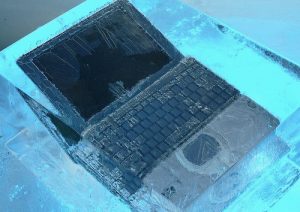
 There are several ways you can recover your frozen PC, depending on what caused the problem. Sometimes, all you have to do is wait a few seconds—the PC might get hung up while doing some work and unfreeze itself a few seconds later.
If a full-screen application, like a game, freezes and prevents you from leaving it, press Alt+F4. This closes the application if the game is just experiencing graphical problems, but it won’t work if the application has frozen completely.
To see if the computer is still responding, press Ctrl+Alt+Delete. From this screen, you can open the Task Manager (and close any running applications), or log out of or restart your PC. If this screen doesn’t appear, you might not be able to recover your PC without rebooting it.
If you can open the Task Manager, you might be able to recover from the freeze. (You can also press Ctrl+Shift+Esc to open the Task Manager.)
Select the “Processes” tab—if you don’t see it, click “More Details.” Locate any processes using a lot of CPU—you can click the “CPU” column header to sort by CPU usage and see the most demanding processes at the top of the list.
Click a process to select it, and then click “End Task” to forcibly end the program. You’ll lose any unsaved work in the program, but if it’s crashed and is using a lot of CPU, there might be no way to recover your unsaved data, anyway.
Sometimes, your Windows desktop—including the taskbar and Start menu—might freeze. You can sometimes restart Windows Explorer to fix these problems. To do so, locate “Windows Explorer” in the list of Processes, click to select it, and then click the “Restart” button. If you don’t have any unsaved work, click the power button at the bottom-right corner of the Ctrl+Alt+Delete screen and select “Restart.” Hopefully, your computer will work normally after it reboots, as this fixes many system problems.
You can also try pressing Windows+L to lock your screen and go back to the sign-in screen. You can restart your PC from there, too. However, if Ctrl+Alt+Delete didn’t work, this method probably won’t either.
If none of the previous steps work, press Windows+Ctrl+Shift+B on your keyboard. This is a hidden hotkey combination that restarts your PC’s graphics drivers. If they are the source of the problem, this might unfreeze your system.
If none of these methods work and your computer won’t respond to anything, there’s only one way to recover from this—a hard shut down.
Locate your computer’s power button, and then press and hold it down for 10 seconds. Your computer will forcibly shut down. Wait a few seconds, and then boot it back up by pressing the power button normally.
This isn’t the cleanest, safest way to shut down your PC. You should use onscreen shutdown methods, but, if it’s not responding, there’s no other way to fix it.
If your computer has blue-screened, this is the only way to fix it. By default, Windows PCs automatically reboot when they blue screen, but if you see a blue screen of death (BSOD), and your PC isn’t rebooting, you’ve probably turned off automatic reboots. Jot down the error message, and then perform a hard shutdown or reboot by long-pressing the power button.
How to Stop Your PC From Freezing in the Future
The tips above can help your PC recover from a freeze and get things functioning normally again. If it’s just a one-time freeze, don’t worry about it too much. Computers sometimes have fluke problems like these. There might be a bug in your computer’s hardware drivers or other software.
If freezes are a regular occurrence, though, something is wrong with your PC. It could be either a software or hardware problem. The Reliability Monitor and BlueScreenView might point you in the right direction.
If the freezes started recently, and you’ve also recently updated your PC or installed new software, try running System Restore. This resets your PC’s software to a known-good state. To find this option on Windows 10, go to Control Panel > System and Security > System > System Protection > System Restore.
To ensure that malware isn’t causing problems with your system, we recommend running an anti-malware scan. On Windows 10, you can scan with the built-in Defender antivirus and try a free Malwarebytes scan. You can also try other anti-malware tools to get a second (or third) opinion.
Hardware problems are much more difficult to pin down. Many things could be failing. Your computer could be overheating, for example, or it could have faulty RAM. If your computer regularly freezes while you’re playing PC games, this could suggest a problem with your PC’s graphics processing unit (GPU) (or, again, overheating.) Many other components in your PC could be at fault, however.
Ensure your PC is dusted out, properly cooled, and then test its RAM. Diagnosing hardware problems is tricky. Often, to accurately test, you have to swap out one component for another and see if that fixes the issue. If your PC is still under warranty, consider letting the manufacturer deal with the problem. After all, that’s part of what you paid (or are paying) them for.
To eliminate the risk of software bugs, it’s a good idea to reinstall Windows. On Windows 10, you can use the “Reset” feature to get your PC back to a like-new state. Keep in mind, however, that this will remove all installed programs. You can also try a “fresh start,” which gives you a fresh Windows 10 system without the utilities the PC manufacturer preinstalled.
If you just installed a major Windows update within the last ten days, you can also try rolling your system back.
If your PC freezes during the Reset process, try making Windows 10 installation media on another computer. Insert that into the frozen PC, boot from the installation media, and then reinstall Windows. If your computer freezes while installing Windows (or afterward), you’ll know you almost certainly have a hardware problem.
For more information on solutions for running your businesses’ technology more efficiently, visit our website or contact Megan Meisner at mmeisner@launchpadonline.com or 813 448-7100 x210.
This was originally posted by Chris Hoffman for HowToGeek.



