
• LinkedIn
  • Twitter
  • Google+
.
|
TechRecs: Cool Tools & Hot Topics
|
A Guide to Quick Steps in Microsoft Outlook
Posted on November 7, 2018 by

Outlook includes a Quick Steps feature that lets you apply multiple actions to a message with one click. Outlook includes several default Quick Steps, but you also can create your own (and delete the default ones if you don’t need them). If you regularly perform the same set of actions, creating a Quick Step and assigning it a hotkey can save you a lot of time. Here’s how they work.

The Default QuickSteps
You can find Quick Steps on the “Home” tab of Outlook. When you first start, you’ll see the default Quick Steps there. You can click any of them to apply the included actions to a selected message.

The default quick steps include:

Move to ?: Opens a window for you to select a folder to which you’d like to move the message.
To Manager: Creates a forwarded copy of the currently selected message with your manager’s address in it.
Team Email: Creates a blank message addressed to the members of your team. (If your email is managed by your employer then depending on how your Exchange administrators have configured your mailbox, Outlook may already know who your manager and team members are. If not, you’ll have to fill these in the first time you use these quick steps.)
Done: Marks the message as read and complete, and then sends it to a specified folder. The first time you use this one, you’ll have specify the folder, but from then on Outlook will remember your choice and send it to that folder every time you use the Quick Step.
Reply & Delete: Opens up a reply to the currently selected message and then deletes the currently selected message after you send the reply.

Outlook only displays Quick Steps that are available. If you haven’t got a message selected, for example, then only the “Team Email” Quick Step is shown because the other defaults work on an existing message.

How to Create a Quick Step
To add a new Quick Step, click the “Create New” option in the Quick Steps box. This opens up a new window where you can name your quick step and choose the actions you want it to perform.

When you click the “Choose an Action” drop-down menu, you get a list of possible actions, each of which may give you additional options to select. We’re going to add two actions: one to move the message to a folder and one to mark it as read.

Select the “Move to folder” action and choose the folder to which you want messages moved. Next, click “Add Action” to add a second action. Select “Mark as read” from the drop-down menu.

Optionally, you can choose one of the built-in shortcut keys and add some text to be displayed when you hover over the Quick Step with your pointer (a brief description reminding your of the actions the Quick Step takes is helpful).

Click “Finish,” and your new Quick Step will appear in the Quick Steps box in Outlook. If you hover over the Quick Step, you’ll see the shortcut key you chose and any tooltip text you entered. Now all you have to do is select your messages and click the new QuickStep (or hit the shortcut key combo) to apply its actions.

How to Edit or Delete a QuickStep
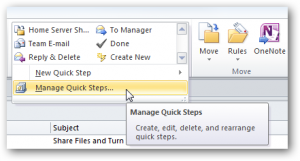
If you want to edit or delete a Quick Step, click the small arrow at the bottom right of the Quick Steps group on the Ribbon.

This opens the “Manage Quick Steps” window.

Here you’ve got the option to edit, duplicate (which creates an exact copy of the selected Quick Step if you want a similar one but with a slight variation), or delete a Quick Step.

You can also change the order in which your Quick Steps appear on the Ribbon or create a new Quick Step.

Finally, there’s the option to “Reset to Defaults.”

Selecting the “Reset to Defaults” option deletes any Quick Steps you’ve created and recreates any default Quick Steps you might have deleted. It also removes any changes you’ve made to the default Quick Steps. Because you can’t undo this action, you’ll be shown a warning. Click “Yes” to make the reset happen.

You can also bypass the “Manage Quick Steps” window for individual Quick Step actions by right-clicking a quick step in the ribbon. This brings up a context menu where you can edit, duplicate, or delete the Quick Step.

And that’s Quick Steps. We haven’t gone through all of the possible actions you can add to a Quick Step because there are tons of them and it’s a pretty intuitive interface once you know how it works. If you want to make your Outlook experience more efficient and less time-consuming, Quick Steps are a great place to start.

For more information on solutions for running your businesses’ technology more efficiently, visit our website or contact Megan Meisner at mmeisner@launchpadonline.com or 813 448-7100 x210.

This was originally posted by HowtoGeek. 


Posted in TechRecs: Cool Tools & Hot Topics, Small Business IT Management
How to Tell if an Email Has Been Spoofed
33 Ways to Use Technology In Your Small Business

Related Posts

  • What Is Patch Tuesday? Microsoft’s Monthly Update Explained

    On the second Tuesday of each month, Microsoft and other tech companies release patches for
    read more
  • 10 Ways to Save Time on Your Windows 11 PC

    Windows 11 packs many features that you can use to speed up your tasks and
    read more
  • How to Automatically Fix Column Width to Fit Your Data in Excel

    There are numerous ways to change column widths in Excel, but did you know you
    read more
  • Why I Use a Privacy Screen When Working in Public

    Privacy screens are an affordable way to protect yourself from nosy colleagues and strangers whilst
    read more
Logging In...

Profile cancel

Sign in with Twitter Sign in with Facebook
or

Not published

TO WEBSITE >>
launchpadonline.com

CATEGORIES

  • Launch Pad News
  • TechRecs: Cool Tools & Hot Topics
  • Small Business IT Management
  • Small Business Web Strategies
  • IT Solutions – Cloud | Mobile
  • IT Solutions – Stay Secure
  • ITs Easy Being Green
  • RevITup TechCare Client Forum
  • GreenBack Nonprofit Wish List
  • Launch Pad Franchise Forum
  • Launch Pad Partner News

Cloud Computing in Plain English

Copyright © 2026 | Privacy Policy
  • LinkedIn
  • Twitter
  • Google+

Archives

  • January 2025 (1)
  • December 2024 (3)
  • November 2024 (4)
  • October 2024 (2)
  • September 2024 (4)
  • August 2024 (3)
  • July 2024 (2)
  • June 2024 (1)
  • May 2024 (3)
  • April 2024 (4)
  • March 2024 (2)
  • February 2024 (3)
  • January 2024 (4)
  • December 2023 (3)
  • November 2023 (3)
  • October 2023 (3)
  • September 2023 (3)
  • August 2023 (5)
  • July 2023 (3)
  • June 2023 (5)
  • May 2023 (4)
  • April 2023 (3)
  • March 2023 (4)
  • February 2023 (3)
  • January 2023 (3)
  • December 2022 (2)
  • November 2022 (2)
  • October 2022 (2)
  • September 2022 (3)
  • August 2022 (3)
  • July 2022 (2)
  • June 2022 (3)
  • May 2022 (2)
  • April 2022 (2)
  • March 2022 (2)
  • February 2022 (3)
  • January 2022 (2)
  • December 2021 (2)
  • November 2021 (3)
  • October 2021 (3)
  • September 2021 (3)
  • August 2021 (3)
  • July 2021 (2)
  • June 2021 (4)
  • May 2021 (3)
  • April 2021 (2)
  • March 2021 (2)
  • February 2021 (3)
  • January 2021 (2)
  • December 2020 (2)
  • November 2020 (2)
  • October 2020 (4)
  • September 2020 (2)
  • August 2020 (3)
  • July 2020 (2)
  • June 2020 (3)
  • May 2020 (2)
  • April 2020 (3)
  • March 2020 (3)
  • February 2020 (3)
  • January 2020 (4)
  • December 2019 (3)
  • November 2019 (2)
  • October 2019 (4)
  • September 2019 (3)
  • August 2019 (4)
  • July 2019 (2)
  • June 2019 (3)
  • May 2019 (3)
  • April 2019 (3)
  • March 2019 (3)
  • February 2019 (3)
  • January 2019 (4)
  • December 2018 (3)
  • November 2018 (4)
  • October 2018 (3)
  • September 2018 (2)
  • August 2018 (3)
  • July 2018 (3)
  • June 2018 (3)
  • May 2018 (2)
  • April 2018 (3)
  • March 2018 (3)
  • February 2018 (3)
  • January 2018 (3)
  • December 2017 (3)
  • November 2017 (4)
  • October 2017 (3)
  • September 2017 (4)
  • August 2017 (4)
  • July 2017 (4)
  • June 2017 (3)
  • May 2017 (5)
  • April 2017 (4)
  • March 2017 (4)
  • February 2017 (5)
  • January 2017 (4)
  • December 2016 (3)
  • November 2016 (4)
  • October 2016 (4)
  • September 2016 (4)
  • August 2016 (5)
  • July 2016 (4)
  • June 2016 (5)
  • May 2016 (3)
  • April 2016 (4)
  • March 2016 (4)
  • February 2016 (3)
  • January 2016 (3)
  • December 2015 (4)
  • November 2015 (4)
  • October 2015 (3)
  • September 2015 (3)
  • August 2015 (3)
  • July 2015 (3)
  • June 2015 (5)
  • May 2015 (4)
  • April 2015 (6)
  • March 2015 (4)
  • February 2015 (2)
  • January 2015 (5)
  • December 2014 (4)
  • November 2014 (3)
  • October 2014 (8)
  • September 2014 (5)
  • August 2014 (2)
  • July 2014 (3)
  • June 2014 (6)
  • May 2014 (3)
  • April 2014 (6)
  • March 2014 (5)
  • February 2014 (3)
  • January 2014 (5)
  • December 2013 (4)
  • November 2013 (4)
  • October 2013 (6)
  • September 2013 (3)
  • August 2013 (5)
  • July 2013 (6)
  • June 2013 (4)
  • May 2013 (3)
  • April 2013 (4)
  • March 2013 (4)
  • February 2013 (3)
  • January 2013 (5)
  • December 2012 (4)
  • November 2012 (5)
  • October 2012 (5)
  • September 2012 (6)
  • August 2012 (6)
  • July 2012 (6)
  • June 2012 (3)
  • May 2012 (7)
  • April 2012 (6)
  • March 2012 (10)
  • February 2012 (6)
  • January 2012 (5)
  • December 2011 (7)
  • November 2011 (9)
  • October 2011 (4)
  • September 2011 (4)
  • August 2011 (11)
  • July 2011 (14)
  • June 2011 (4)
  • May 2011 (11)
  • April 2011 (8)
  • March 2011 (11)
  • February 2011 (11)
  • January 2011 (21)
  • December 2010 (10)
  • November 2010 (10)
  • October 2010 (8)
  • September 2010 (10)
  • August 2010 (12)
  • July 2010 (8)
  • June 2010 (9)
  • May 2010 (8)
  • April 2010 (7)
  • March 2010 (10)
  • February 2010 (8)
  • January 2010 (6)
  • December 2009 (7)
  • November 2009 (13)
  • October 2009 (11)
  • September 2009 (16)
  • August 2009 (13)
  • July 2009 (16)
  • June 2009 (18)
  • May 2009 (16)


