
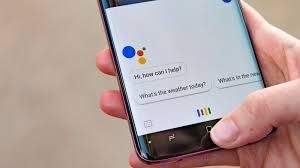
 Google Assistant is artificial intelligence at your fingertips — but sometimes, it can be tough to know what to ask an omniscient robot to do. Here is the ultimate guide to Google Assistant’s most useful productivity-oriented commands.
Notes and reminders –
1) Launch Google Assistant by either holding down the Home button on your Android device or saying Ok Google, Note to self. The first time you use the command, your device will let you pick which compatible app you want to have associated with it. Most Android note-taking apps — including Evernote, Google Keep and Microsoft OneNote — are supported, as are project collaboration apps such as Trello. You can even opt to have the note sent as an email to your own address via Gmail.
2) Google Assistant can act as your secretary and compile a running daily list of project ideas, to-do tasks, or anything else imaginable — and then send you the list as a single email at the end of the day. It can even send the list to multiple people or post it into apps like Slack, Evernote or Trello.
3) Assistant’s most useful tool is arguably its ability to take and manage context-sensitive reminders. You can set a reminder for a specific time and day — “Remind me to call Marty Friday at noon,” for instance — or you can create a reminder that’ll appear when you arrive at a particular location: “Remind me to order more paper when I get to work,” “Remind me to check on report progress when I’m at the Chicago airport,” “Remind me to mention the client’s baby when I get to Red Robin,” and so on.
4) You can even set reminders with general locations, such as “Remind me to pick up bagels at the grocery” or “Remind me that Gladys wants an Egg McMuffin when I get to McDonald’s,” and Assistant will deliver the message the next time you arrive at a relevant place.
Last but not least, you can set recurring reminders by adding the word “every” into your command (e.g., “Remind me to check the printers every Tuesday at 3,” “Remind me to touch base with Stu on the first day of every month,” or “Remind me to wish the boss a happy birthday on June 4 every year”).
5. In addition to regular reminders, Google Assistant can help you remember random facts. Just tell it what you need to know — such as “Remember that the office Wi-Fi password is ‘FreshProsciutto7,'” “Remember that my rental car is a red Toyota Camry with Florida license plate EE379Q,” or “Remember that the boss’s husband is an accountant named Morty.”
Then, when you need to recall the info, just say, “What did I tell you about …” followed by the subject — “the office Wi-Fi password,” “my rental car,” or whatever the case may be.
Calendar
6. Create new calendar events on the fly by telling Assistant “add to my calendar” followed by the event’s name, date and time.
7. Peek at your agenda for any day by asking Assistant variations on these questions:
“When’s my next appointment?”
“Show me my appointments for Tuesday afternoon.”
“What does my day look like on Friday?”
“What’s on my calendar for next Monday?”
“What/when/where is my next event?”
“What’s my first event tomorrow?”
“When’s my next haircut appointment?”
Messages and communication
8. Next time you need to make a call, let Assistant act as your operator. Just tell it to call any publicly listed business or any person in your contacts — specifying “mobile” or “work” if needed — and then sit back while the call is made. If you’re driving and need to go completely hands-free, add “on speakerphone” to the end of your request.
9. Send a text without lifting a finger by telling Google Assistant “text” followed by your contact’s name and your message. When you stop speaking (or even just pause for more than a second or so — careful!), the system will typically confirm that it got everything right and then ask if you want to send the message.
10. Need to catch up on text messages when your eyes are otherwise occupied? No problem: Tell Assistant, “Read me my messages,” and it’ll walk you through your most recent texts and offer to read any or all of them aloud. You can also specify a contact’s name — “Read me my messages from Arthur” — if you’re looking for something specific.
11. Assistant makes it easy to find emails within Gmail, too: Just ask it to “find my emails from” a particular contact or to “find my emails about” a specific subject, and it’ll pop up tappable results right within its interface. If you use a mail service other than Gmail, you can try searching Google’s Assistant website for a third-party add-on such as Mail Triage — which adds email actions for Microsoft Office 365 and Outlook.com into Assistant’s repertoire.
12. You can also send emails in Gmail via Assistant. Use the following format: “Send email to [contact name], subject [your subject], message [your message].”
Phone functions and settings
13. Google Assistant can get around your Android phone (or, to a lesser extent, your iPhone) in a flash. Try telling it to open any app or website — or, if you really want to get fancy, tell it to search within an app: “search for ‘presentation’ in Google Drive,” “search for ‘IBM’ on Twitter,” “search for ‘USB-C adapter’ on Amazon” and so on.
14. Listening to some sort of (ahem) important business-related audio in the car? Tell Assistant to turn the volume up or down or to set it to a specific level (e.g., “set the volume to 10”) or percentage (e.g., “set the volume to 50%”). You can also tell Assistant to mute the volume, if you need some peace and quiet.
15. Why swipe and search through your phone’s settings when you can simply speak your desires? Assistant is standing by and ready to handle most toggle-like settings on your Android device. Try telling it to turn Wi-Fi, Bluetooth, flashlight, airplane mode, or battery saver mode on or off or to dim or brighten your screen.
Other useful odds and ends
16. Get a heads-up on traffic before you head out by asking Assistant what the traffic is like on the way to work or how long it’ll take to get to any specific business name or address. And, of course, you can always tell Assistant to give you directions or navigate (by car, foot, or public transit) to any place you need.
17. Traveling for work? Or picking up an out-of-town interviewee? Assistant can give you up-to-date flight info for any airline. Just ask when the flight arrives or if it’s on time.
18. Google Assistant can even help you book your next trip. Ask it to find you flights from your city to your destination, and it’ll walk you through the best options. It’ll even offer to track prices and keep you posted via email if prices change.
19. Give your brain a break and let Assistant handle all your calculations and conversions. Pose practically any mathematical inquiry or unit changeover — liters to gallons, euros to dollars, you name it — and Assistant will give you the info you need in no time.
20. Google Assistant is overflowing with general knowledge. Ask it for definitions, translations, or even just spellings. And ask it for any type of fact you can think of — the name of a CEO or founder, the location of a company’s headquarters, or anything else that might make you seem extra-informed in your professional adventures.
For more information on solutions for running your businesses’ technology more efficiently, visit our website or contact Megan Meisner at mmeisner@launchpadonline.com or 813 448-7100 x210.
This was originally posted by Computerworld. Image credit Secure Thoughts



