
• LinkedIn
  • Twitter
  • Google+
.
|
Launch Pad News
|
How to Group Worksheets in Excel
Posted on October 22, 2021 by

When your Excel workbook has multiple sheets identical in layout and structure, you can streamline your work by grouping similar sheets. To be more specific, once you learn how to group worksheets in Excel, you can apply a change to corresponding cells in all the grouped sheets by changing just one of the grouped sheets. For instance, if you change the row height and width for one sheet, it will change for the grouped sheets as well.

Why Would You Want to Group Worksheets in Excel?
You can perform several tasks on grouped sheets, such as:

  • Modify or add data and insert formulas.
  • Print them at the same time.
  • Move, copy or delete information simultaneously.
  • Since Excel doesn’t allow adding multiple sheets, you could group 10 sheets, right-click on them, and select the Insert option to insert 10 sheets at once.

How to Group Worksheets in Excel
We’ll use the following example to see how to group worksheets in Excel.

Say you’ve divided your sales team into three groups based on the product they sell, and you have sales data for those individual teams. The sales data is in three separate worksheets, each worksheet containing data for one product. You want to calculate the commission for each employee without having to enter formulas on multiple sheets manually. Instead of calculating commissions on each sheet separately, you could group the worksheets.

  • Press-hold the Ctrl button.
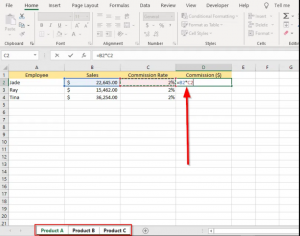
  • Click on the sheets you want to group. The grouped sheets turn white, while ungrouped sheets continue to appear grey. You’ll see the word Group added to the title bar when you’re in one of the grouped sheets.
  • Add the formula to calculate the commission for one employee (column C, row 2), preferably in the first row, so that you can drag the formula into subsequent cells. Notice that we’ve grouped all three sheets since we’d like to apply the changes to all sheets.
  • Select the cell you just entered the formula in and drag the border selection to apply the formula to the entire cell range. Doing so will apply the same changes to all the grouped sheets.
  • Verify that the changes also appear in other grouped worksheets. If you did everything correctly, all three sheets should have their D column populated with the commission amount due to the employees.
How to Group All Worksheets in Excel?
If you’re dealing with a workbook with several dozen worksheets, it could take you a while (and perhaps an aspirin) to select all worksheets individually. Instead, Excel has a Select All Sheets option that allows you to group all sheets at once. All you need to do is right-click on any one sheet tab and tap Select All Sheets.

Note: The catch with using this option is that navigating among worksheets automatically deselects (or ungroups) all worksheets, unlike in the last option (where we selected individual worksheets), where you could switch between sheets without ungrouping them.

How to Move, Copy, Delete, Print, or Hide Grouped Worksheets
You can apply plenty of Excel operations to grouped sheets like move, copy, or even hide sheets. Usually, it works the same way as it would for normal worksheets.

Move or Copy Grouped Worksheets
Once you’ve grouped the worksheets:

  • Right-click on one of them and select Move or Copy
  • Select the target book from the drop-down and select the position where you want to move or copy the grouped sheets. If you want to copy, select the Create a copy checkbox at the bottom and then select OK.

Delete Grouped Worksheets
You can also delete grouped sheets the same way. When the worksheets are grouped, right-click on one of the grouped sheets and select Delete.

Print Grouped Worksheets
When the worksheets are grouped, press Ctrl + P. You’ll now see the Print options. Scroll down to Settings and select Print Active Sheets. Before you select Print, look at the preview on the right to make sure you’re printing the correct sheets. Once you’ve confirmed this, select Print.

Hide Grouped Worksheets
You can also hide grouped sheets at once.

  • Start by grouping the sheets.
  • From the top ribbon, select Home, and select Format from the Cells group.
  • Once you select Format, you’ll see a drop-down menu. Select Hide & Unhide > Hide Sheet. This will hide all the grouped sheets.

How to Ungroup Worksheets in Excel
If you want to ungroup all the grouped worksheets, just right-click on any worksheet and select Ungroup Sheets. If you haven’t grouped all worksheets in the workbook, clicking on any of the ungrouped worksheets will also ungroup the grouped worksheets. If you want to ungroup a few worksheets, press-hold Ctrl and click on the sheets you want to ungroup.

Save Time by Grouping Worksheets in Excel
Grouping worksheets often saves you the time you’d otherwise spend copying and pasting formulas across sheets or performing other repetitive tasks. Excel is a feature-rich program, though, and there are always shortcuts to make things easier in Excel. For instance, if you’re working on a workbook with a large number of sheets, there are several ways to switch between worksheets quickly.

For more information on solutions for running your businesses’ technology more efficiently, visit our website or contact Megan Meisner at mmeisner@launchpadonline.com or 813 448-7100 x210.

This was originally posted by OnlineTechTips.

Posted in Launch Pad News, TechRecs: Cool Tools & Hot Topics, Small Business IT Management
How to Factory Reset an iPhone or iPad
How to Clear Your Browsing History in Google Chrome

Related Posts

  • What Is Patch Tuesday? Microsoft’s Monthly Update Explained

    On the second Tuesday of each month, Microsoft and other tech companies release patches for
    read more
  • 10 Ways to Save Time on Your Windows 11 PC

    Windows 11 packs many features that you can use to speed up your tasks and
    read more
  • How to Automatically Fix Column Width to Fit Your Data in Excel

    There are numerous ways to change column widths in Excel, but did you know you
    read more
  • Why I Use a Privacy Screen When Working in Public

    Privacy screens are an affordable way to protect yourself from nosy colleagues and strangers whilst
    read more
Logging In...

Profile cancel

Sign in with Twitter Sign in with Facebook
or

Not published

TO WEBSITE >>
launchpadonline.com

CATEGORIES

  • Launch Pad News
  • TechRecs: Cool Tools & Hot Topics
  • Small Business IT Management
  • Small Business Web Strategies
  • IT Solutions – Cloud | Mobile
  • IT Solutions – Stay Secure
  • ITs Easy Being Green
  • RevITup TechCare Client Forum
  • GreenBack Nonprofit Wish List
  • Launch Pad Franchise Forum
  • Launch Pad Partner News

Cloud Computing in Plain English

Copyright © 2026 | Privacy Policy
  • LinkedIn
  • Twitter
  • Google+

Archives

  • January 2025 (1)
  • December 2024 (3)
  • November 2024 (4)
  • October 2024 (2)
  • September 2024 (4)
  • August 2024 (3)
  • July 2024 (2)
  • June 2024 (1)
  • May 2024 (3)
  • April 2024 (4)
  • March 2024 (2)
  • February 2024 (3)
  • January 2024 (4)
  • December 2023 (3)
  • November 2023 (3)
  • October 2023 (3)
  • September 2023 (3)
  • August 2023 (5)
  • July 2023 (3)
  • June 2023 (5)
  • May 2023 (4)
  • April 2023 (3)
  • March 2023 (4)
  • February 2023 (3)
  • January 2023 (3)
  • December 2022 (2)
  • November 2022 (2)
  • October 2022 (2)
  • September 2022 (3)
  • August 2022 (3)
  • July 2022 (2)
  • June 2022 (3)
  • May 2022 (2)
  • April 2022 (2)
  • March 2022 (2)
  • February 2022 (3)
  • January 2022 (2)
  • December 2021 (2)
  • November 2021 (3)
  • October 2021 (3)
  • September 2021 (3)
  • August 2021 (3)
  • July 2021 (2)
  • June 2021 (4)
  • May 2021 (3)
  • April 2021 (2)
  • March 2021 (2)
  • February 2021 (3)
  • January 2021 (2)
  • December 2020 (2)
  • November 2020 (2)
  • October 2020 (4)
  • September 2020 (2)
  • August 2020 (3)
  • July 2020 (2)
  • June 2020 (3)
  • May 2020 (2)
  • April 2020 (3)
  • March 2020 (3)
  • February 2020 (3)
  • January 2020 (4)
  • December 2019 (3)
  • November 2019 (2)
  • October 2019 (4)
  • September 2019 (3)
  • August 2019 (4)
  • July 2019 (2)
  • June 2019 (3)
  • May 2019 (3)
  • April 2019 (3)
  • March 2019 (3)
  • February 2019 (3)
  • January 2019 (4)
  • December 2018 (3)
  • November 2018 (4)
  • October 2018 (3)
  • September 2018 (2)
  • August 2018 (3)
  • July 2018 (3)
  • June 2018 (3)
  • May 2018 (2)
  • April 2018 (3)
  • March 2018 (3)
  • February 2018 (3)
  • January 2018 (3)
  • December 2017 (3)
  • November 2017 (4)
  • October 2017 (3)
  • September 2017 (4)
  • August 2017 (4)
  • July 2017 (4)
  • June 2017 (3)
  • May 2017 (5)
  • April 2017 (4)
  • March 2017 (4)
  • February 2017 (5)
  • January 2017 (4)
  • December 2016 (3)
  • November 2016 (4)
  • October 2016 (4)
  • September 2016 (4)
  • August 2016 (5)
  • July 2016 (4)
  • June 2016 (5)
  • May 2016 (3)
  • April 2016 (4)
  • March 2016 (4)
  • February 2016 (3)
  • January 2016 (3)
  • December 2015 (4)
  • November 2015 (4)
  • October 2015 (3)
  • September 2015 (3)
  • August 2015 (3)
  • July 2015 (3)
  • June 2015 (5)
  • May 2015 (4)
  • April 2015 (6)
  • March 2015 (4)
  • February 2015 (2)
  • January 2015 (5)
  • December 2014 (4)
  • November 2014 (3)
  • October 2014 (8)
  • September 2014 (5)
  • August 2014 (2)
  • July 2014 (3)
  • June 2014 (6)
  • May 2014 (3)
  • April 2014 (6)
  • March 2014 (5)
  • February 2014 (3)
  • January 2014 (5)
  • December 2013 (4)
  • November 2013 (4)
  • October 2013 (6)
  • September 2013 (3)
  • August 2013 (5)
  • July 2013 (6)
  • June 2013 (4)
  • May 2013 (3)
  • April 2013 (4)
  • March 2013 (4)
  • February 2013 (3)
  • January 2013 (5)
  • December 2012 (4)
  • November 2012 (5)
  • October 2012 (5)
  • September 2012 (6)
  • August 2012 (6)
  • July 2012 (6)
  • June 2012 (3)
  • May 2012 (7)
  • April 2012 (6)
  • March 2012 (10)
  • February 2012 (6)
  • January 2012 (5)
  • December 2011 (7)
  • November 2011 (9)
  • October 2011 (4)
  • September 2011 (4)
  • August 2011 (11)
  • July 2011 (14)
  • June 2011 (4)
  • May 2011 (11)
  • April 2011 (8)
  • March 2011 (11)
  • February 2011 (11)
  • January 2011 (21)
  • December 2010 (10)
  • November 2010 (10)
  • October 2010 (8)
  • September 2010 (10)
  • August 2010 (12)
  • July 2010 (8)
  • June 2010 (9)
  • May 2010 (8)
  • April 2010 (7)
  • March 2010 (10)
  • February 2010 (8)
  • January 2010 (6)
  • December 2009 (7)
  • November 2009 (13)
  • October 2009 (11)
  • September 2009 (16)
  • August 2009 (13)
  • July 2009 (16)
  • June 2009 (18)
  • May 2009 (16)


