
It seems that the faster technology moves, the more mail pours in on us from all sides. We get messages from colleagues and peers, from family and friends, from causes and social media sites. Some of us spend more than 4 hours a day just trying to tame the email beast (more than Timothy Ferris says we should work in an entire week!) What we need to know is the right way to view, sort, filter and ignore. Master those skills and the sky will open. Email chaos can be conquered!
7: Get Rid of Those Invitations
Outlook includes a number of options that make it easy for you to tailor how mail behaves after you receive it. Some messages you really don’t need to leave in your Inbox forever. Case in point: meeting invitations. You can tell Outlook to automatically delete any message you respond to by displaying the Outlook Options dialog box (click File, click Options, and click the Mail tab). Scroll down to the Send Messages area and click the Delete Meeting Requests and Notifications from Inbox after Receiving check box. Click OK to save the change.
8: Clean Everything Up
Is you inbox clean or is it a overwhelming flood and you can’t find the shore? One where you can go directly to a message you’re looking for without a lot of searching and scrolling? Do you organize your messages by folder and discard the ones you don’t need right away? I thought so. Me neither.
Outlook includes a few cleanup features that can help you create some breathing room in your Inbox once again. The tool gives you three choices for the item you want to clean up. You can clean up the selected conversation, clean up the current folder, or clean up folders and subfolders (which means everything). When you click the tool, Outlook lets you know that it’s going to delete redundant messages and put them in your Deleted Items folder. You can change that by clicking Settings and entering the settings you’re most comfortable with. Click OK to clean up your selection and gain a little more room for incoming mail.
9: Search Smart Using Filters
People shy away from Outlook filters because they think they are too much trouble to use properly. But actually, the opposite is true. If you consider the time you spend pushing PgDn and scanning the various messages looking for that one you need, you know that any tool that helps you cut to the chase is a good thing. The filters in Outlook help you find messages that meet specific criteria. For example, you can instantly display only messages that have attachments, messages you sent to a specific person, messages with the word “petunia” in the body of the message, and so on. Once you create this focused subset of messages, you can do what you like with them — delete them, put them in a folder that won’t clog up your Inbox, or print them and hang them on your cubicle wall (but why?). You’ll find the filters in the Filter E-mail tool in the Find group of the Home tab. You can click More Filters to display the Search Tools contextual tab so that you can see all the filters together in convenient spot.
10: Combine and Conquer
Okay so it may seem counterintuitive, but it actually saves you time to bring all your different Web-based email accounts into Outlook 2010. You can easily set up your accounts by clicking the File tab and choosing Add Account in the top of the center column in the Info tab of Backstage view. Follow the prompts to get the email working properly. This will create a new email folder for your Web-based account. So anytime you check email (or Outlook does it automatically), all accounts are checked and you never have to go out to the various sites, enter your email address and password, and do the checking yourself. Yes, it could give you more messages to deal with. But after reading through the other nine tips in this article, you have a handle on how to do that, right?
A Few Tips & Tools
? Go light on the rules. Too much automated filing can make it hard to know what’s in your archives and you run the risk of losing something important. Plus, I’ve found it makes review and organization much more time consuming.
? Use a separate account and mail program (Gmail is good) for your listserve and announcement stuff. Keeping this stuff totally separate really helps.
? For group addresses, assign someone to triage and do initial responses. Also, try and keep group and individual e-mail boxes separate if you can.
? Check your mail 3-4 times a day instead of every 10 minutes. Going through your mail in bunches really helps.
? It’s 3am and maybe you don’t won’t to push send on that email and have your recipients wonder about your sanity. Perhaps you want 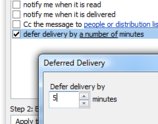 to be out of the office when your message about the new coffee pricing hits inboxes. In those and many other situations, delaying your email sending can be a great idea. You can change the options on each individual message to delay a sending, as we’ve explained, but the How-To Geek (this guy really knows his Outlook, eh?) offers a compelling argument for delaying all Outlook messages by something like five minutes. That way, you’ve always got at least a few deep breaths’ time to go back and fix “Exactly What You Think about Steve” and similar messages.
? When in doubt—DELETE. If you don’t need to keep something and don’t plan to respond, just trash it.
Great Tools to Help Organize
Mail Triage
MailTriage is a free Outlook 2010 Add-In that increases the efficiency of processing daily email. MailTriage works by grouping emails into converstations in a seperate window pane and allows the user to delete one or more emails from a group at a time. It also provides a condensed view of the converstation for fast triage.
Xobini
Xobni (inbox backwards) is a bit of the Swiss Army knife of email organizing tools. It works with Outlook, G-mail, BlackBerrys and more to simplify and greatly enhance mail and contact search and identify capabilities. Think of it like a social network for your Inbox. It finds all the people you know through your emails, SMS messages and phone calls, and automatically creates interesting and data rich profile to “expose the hidden social network” in your email.
Duplicate Email Remover
This is a simple and powerful outlook plugin to delete duplicated messages and posts. Works with Outlook folders (PST), Exchange server mailboxes (OST) and Exchange Public folders.
To learn more about Conquering Email Chaos view Part 1 of this TechEd™ Blog Series.
Interested in learning more about The Launch Pad? Visit our website or contact Megan Meisner at mmeisner@launchpadonline.com or 813 920 0788 x210.



